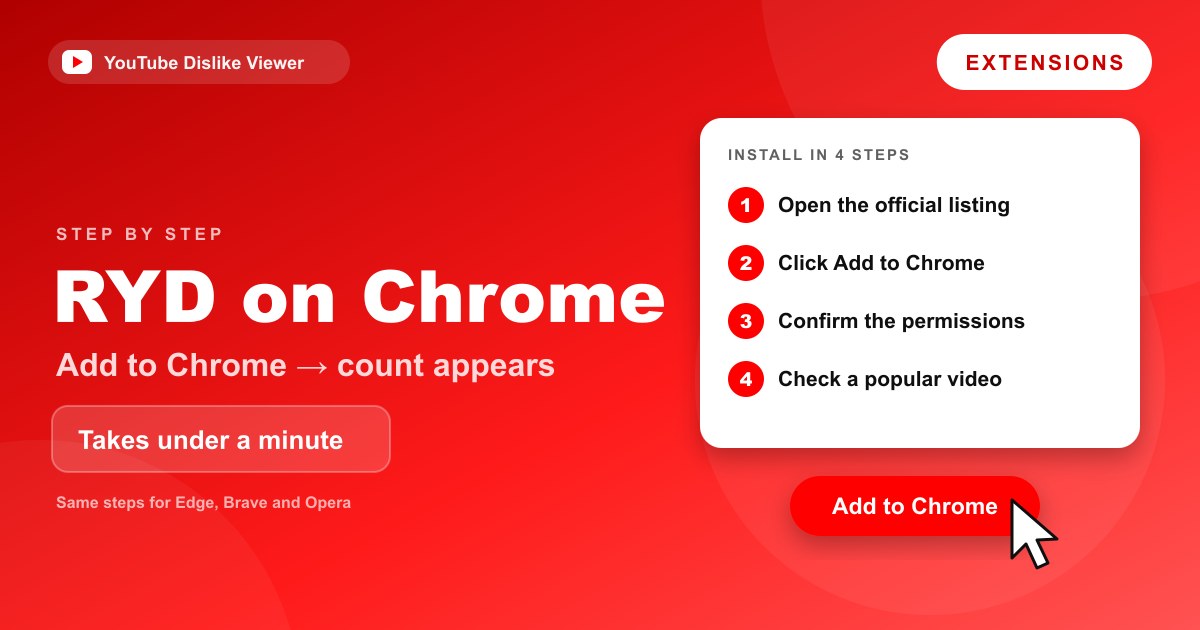
To install Return YouTube Dislike on Chrome, open the official Chrome Web Store listing, click Add to Chrome, and confirm the permission prompt. The dislike count then appears on YouTube videos automatically. The whole thing takes under a minute. If you’re on a phone, where Chrome can’t run extensions, or you just want one quick number, you can check a video’s dislikes in your browser instead with nothing to install.
Below are the full steps, written to survive Chrome’s interface changes, plus how to confirm it’s working, pin it, adjust the settings worth knowing, fix a count that won’t show, and remove it later. The same steps work for Edge, Brave, and Opera, since all three run Chrome Web Store extensions.
Before you start
Two things save trouble. First, install only from the official Chrome Web Store listing, copycat extensions with similar names exist, and the store is the one place to avoid them. The project’s install page links straight to the genuine listing.
Second, know what you’re agreeing to. The extension asks to run on YouTube and to contact its own server to fetch counts, and nothing broader than that. If you’d like the reasoning behind those permissions before installing, read Is the Return YouTube Dislike extension safe? first.
Install Return YouTube Dislike on Chrome, step by step
- Open Chrome and go to the official Chrome Web Store listing for Return YouTube Dislike. The safest route is the project’s install page, which links to it directly, rather than searching the store and guessing which result is real.
- Check that you’re on the genuine listing. It has millions of users and a long review history, a fake usually has a handful of installs and a recent publish date.
- Click the Add to Chrome button near the top right of the listing.
- A prompt appears describing what the extension can access. Read it, then click Add extension to confirm.
- Wait a couple of seconds. Chrome downloads and installs it, and you’ll see a small confirmation near the toolbar.
That’s the install done. There’s no account to create and no payment step, the extension is free.
Confirm it’s working
Open any popular YouTube video in Chrome. Look next to the like and dislike buttons under the video. A dislike number should now sit where the public count used to be, and on many videos you’ll also see the old ratio bar under the player.
Pick a well-known video with obvious engagement for this test rather than a brand-new upload. New or obscure videos may not have enough data for a count yet, so a missing number there doesn’t mean the install failed, it means the archive doesn’t have an estimate for that specific video.
Pin it to the toolbar
Chrome tucks new extensions behind a puzzle-piece icon rather than showing them outright. Pinning gives you one-click access to the extension’s settings.
- Click the puzzle-piece Extensions icon at the top right of Chrome.
- Find Return YouTube Dislike in the dropdown.
- Click the pin icon next to it so its icon stays visible on the toolbar.
You don’t have to pin it for the count to work, the number shows on videos either way. Pinning just makes the settings quicker to reach.
Settings worth knowing
Click the extension’s icon to open its options. A few settings are worth a look.
| Setting | What it does |
|---|---|
| Number display | Show the exact estimated count, or a shortened form like 12K |
| Ratio bar | Turn the like/dislike bar under the player on or off |
| Color style | Adjust how the bar and count are colored |
Defaults are fine for most people. The ratio bar is the setting most worth keeping on, since the like-to-dislike balance often tells you more than the raw dislike number does.
Reading the count once it’s there
With the extension running, every video page shows a dislike number next to the like count, and usually the ratio bar under the player. Getting value out of it is mostly about reading the two figures together.
The ratio matters more than the raw dislike number. A video with 5,000 dislikes against 900,000 likes is well received; the same 5,000 dislikes against 6,000 likes is a warning. The bar under the player shows that split at a glance, which is the quick read most people are after.
Keep in mind that counts on videos uploaded after November 2021 are estimates, not exact figures, and they’re steadier on popular videos than on obscure ones. The number is a strong signal, not a precise measurement, the full explanation of why is in What is Return YouTube Dislike and how does it work?.
Keep the extension updated
Chrome updates extensions automatically in the background, so most of the time you don’t have to think about it. Updates matter more for this extension than for many others, though, because YouTube changes its layout often and the count can break until the extension catches up.
If the number disappears after a YouTube redesign, force an update: open chrome://extensions, turn on Developer mode at the top right, and click Update. That pulls the newest version, which is frequently already fixed for whatever just changed. It’s worth knowing that Chrome’s shift to the Manifest V3 extension system changed how extensions run across the board, which is one more reason to stay on the current version rather than an old one.
If the count doesn’t appear
Most first-time misses come down to a few things, in order of likelihood:
- You tested a video with no data. Try a popular video with clear engagement before assuming anything’s wrong.
- The page loaded before the extension ran. Do a hard refresh with Ctrl+F5 (or Cmd+Shift+R on a Mac).
- An ad blocker is interfering. Content blockers can stop the extension’s data requests, disable yours briefly to test, then add a YouTube exception if that was the cause.
- Site access is too narrow. Open
chrome://extensions, click Details on Return YouTube Dislike, and make sure it’s allowed to run on youtube.com.
If none of that brings the count back, the full troubleshooting run, including outages and reinstalls, is in Return YouTube Dislike not working? Here’s how to fix it.
A note about Chrome on phones
Here’s the follow-up question almost everyone has: does this work on my phone? On Chrome for Android and iPhone, no. Mobile Chrome doesn’t support extensions, and neither does the YouTube app, so there’s no way to add Return YouTube Dislike to Chrome on a phone.
That’s not a Chrome quirk you can work around with a setting, it’s how mobile browsers are built, and it applies to tablets running the phone version of Chrome as well. To see a dislike count on a phone or tablet, a browser-based viewer is the practical answer, since it runs as a normal web page in the browser you already have.
On mobile or a locked-down computer: paste a YouTube link into our free viewer. It reads the same archive the extension does, needs no install, and works where extensions can’t. For the full picture on other browsers and mobile options, see Return YouTube Dislike on Firefox, Edge, Safari, and mobile.
How to remove it
If you decide you don’t want it, removal takes seconds.
- Right-click the Return YouTube Dislike icon on the toolbar and choose Remove from Chrome, or open
chrome://extensions, find its card, and click Remove. - Confirm when Chrome asks.
That deletes the extension and its settings from that browser. You can reinstall it from the official listing any time, and your saved preferences will start fresh.
If you’re removing it because the count stopped showing rather than because you’re done with it, a reinstall from the official store also pulls the newest version, which often fixes a break caused by a YouTube layout change. Removal and a clean reinstall are the last resort after updating and a hard refresh, not the first thing to try.
Frequently asked questions
Is Return YouTube Dislike free on Chrome?
Yes. The extension is free to install from the Chrome Web Store, with no account and no payment. It’s an open-source community project, and browser tools built on the same data are free as well.
Does Return YouTube Dislike work on Chrome for Android?
No. Chrome on Android and iPhone doesn’t support extensions, so it can’t run there. On a phone, use a browser-based dislike viewer instead, since that works as a normal web page.
Where should I download Return YouTube Dislike for Chrome?
Only from the official Chrome Web Store listing, reached through the project’s install page. Avoid extension files offered on forums or download portals, since those are where fakes and altered versions turn up.
Why isn’t the dislike count showing after I installed it?
Usually because you tested a video with too little data, the page needs a hard refresh, or an ad blocker is blocking the extension’s requests. Try a popular video, refresh with Ctrl+F5, and check that the extension is allowed to run on youtube.com.
Does the Chrome version work on Edge, Brave, and Opera?
Yes. Edge, Brave, and Opera all install Chrome Web Store extensions, so the same listing and steps work for them. The install prompt and toolbar may look slightly different, but the process is the same.
The whole install in four lines
If you skimmed, here’s the entire process to keep:
- Open the official Chrome Web Store listing (via the project’s install page, not a search guess).
- Click Add to Chrome and confirm the permission prompt.
- Open a popular video and check for the count next to the dislike button.
- Pin the extension if you want fast access to its settings.
That covers Edge, Brave, and Opera too, since they run the same store extension. The one place none of this reaches is your phone, where Chrome can’t run extensions at all, so for mobile, or any computer where you can’t install anything, look up the dislikes in your browser with the same archive behind it.
Chrome’s menus shift over time; these steps describe what to look for rather than exact button positions.