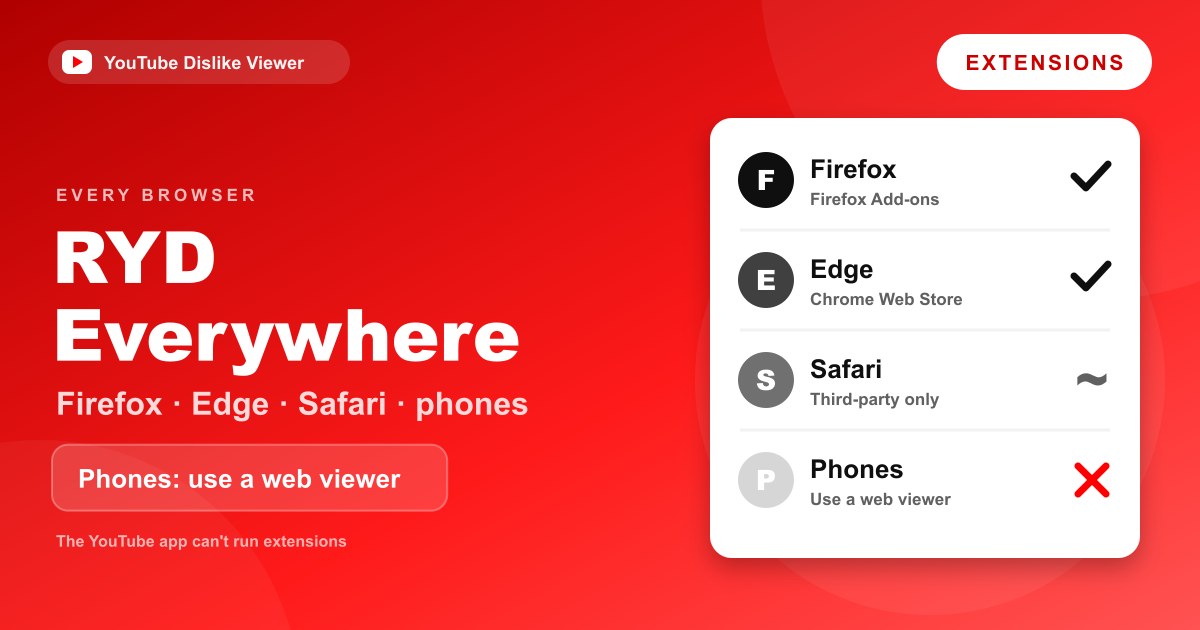
Return YouTube Dislike runs natively on Firefox and on every Chromium browser, so Edge, Brave, and Opera all install it straight from the Chrome Web Store. Safari and phones are the harder cases: Safari needs a separate third-party extension, and on mobile the add-on generally doesn’t run at all, which is where a browser-based dislike viewer becomes the practical answer, since it needs no install and works on a phone.
This guide covers each browser in turn, a support table first, then install steps for Firefox and Edge, the honest situation on Safari, and a clear section on mobile, including the one partial exception on Android.
Browser support at a glance
| Browser | Available? | Where to get it | Notes |
|---|---|---|---|
| Firefox (desktop) | Yes | Firefox Add-ons (official) | Full support |
| Edge | Yes | Chrome Web Store | Edge runs Chrome extensions |
| Brave / Opera | Yes | Chrome Web Store | Same listing as Chrome |
| Safari (Mac) | Partial | Third-party Safari extension | Not the official add-on |
| Firefox for Android | Partial | Firefox Add-ons | Works in limited cases; see below |
| Chrome on Android/iPhone | No | N/A | Mobile Chrome can’t run extensions |
| YouTube app (iOS/Android) | No | N/A | Apps don’t support extensions |
The pattern is straightforward: desktop browsers are well covered, and phones mostly aren’t. The sections below fill in the details for each one, so you can jump to whichever browser you actually use rather than reading the whole list.
Install on Firefox
Firefox has its own official version of the extension on Firefox Add-ons, so you don’t use the Chrome store here.
- Open Firefox and use the Return YouTube Dislike project’s official install page to choose the Firefox version and avoid copycat extensions.
- Click Add to Firefox.
- Read the permission prompt, it asks to run on YouTube and to contact its server for counts, then click Add to confirm.
- Open a popular YouTube video and check for the dislike number next to the like button.
If you want the reasoning behind those permissions before you agree, Is the Return YouTube Dislike extension safe? walks through what it accesses and sends.
Install on Edge, Brave, and Opera
These are all Chromium browsers, so they run Chrome Web Store extensions directly. There’s no separate Edge or Brave listing to hunt for.
- Open the browser and go to the official Chrome Web Store listing for Return YouTube Dislike.
- In Edge, you may see a banner saying extensions from other stores are allowed, approve it if asked. Then click Add to Chrome (the button keeps that label even in Edge).
- Confirm the permission prompt.
- Test on a well-known video to see the count appear.
The steps mirror a normal Chrome install. If you’re on Chrome itself, the fuller walkthrough, pinning, settings, and fixes, is in How to install Return YouTube Dislike on Chrome.
Why these browsers share one listing
Edge, Brave, Opera, and Vivaldi are all built on Chromium, the same open-source base as Chrome. That shared foundation is why they can install extensions from the Chrome Web Store without a separate version, the extension format is the same underneath the different interfaces. It also means an update to the Chrome listing reaches all of them, so you don’t track versions per browser. The trade-off is minor: menus, the permission prompt, and where the extension icon sits will look a little different in each, even though the extension itself is identical.
Managing and updating it on Firefox
Firefox keeps its own extension controls separate from Chrome’s, so it’s worth knowing where they live.
Open the menu and choose Add-ons and themes, or type about:addons in the address bar. From there you can see Return YouTube Dislike, check its permissions, and set whether it runs in private windows, extensions are off in private browsing by default, so switch that on if you want the count there too.
Firefox updates add-ons automatically, but you can force a check from the gear menu on the Add-ons page if the count breaks after a YouTube change. Pulling the newest version is often the fix, since YouTube’s layout updates are the usual reason the count disappears.
Safari: the awkward one
Safari doesn’t have an official Return YouTube Dislike extension, and that’s the honest state of things. Apple handles Safari extensions differently from other browsers, and the main project doesn’t publish one there.
What exists instead is a separate, third-party Safari extension made by an independent developer that brings the same dislike counts to Safari on Mac. It reads the same public archive, but it isn’t built or maintained by the core Return YouTube Dislike team, so treat it as a distinct add-on: check its developer, its reviews, and its permissions before installing, the same as you would any extension.
There’s also a userscript route. If you run the Tampermonkey add-on in Safari, the project publishes a userscript that restores the count. That’s more fiddly to set up and better suited to people comfortable with userscripts, since you install the script manager first and then add the script by hand rather than clicking a single install button.
If neither appeals, the browser tool sidesteps Safari’s limitations entirely, you paste a link and read the number in any Safari tab, on Mac or iPhone, with nothing added to the browser.
Mobile: why the extension mostly can’t help
This is the section most people actually need. On phones, browser extensions generally don’t run, and that includes Return YouTube Dislike.
The YouTube app on iOS and Android has no extension support at all, apps aren’t browsers, and there’s no slot to add one. Mobile Chrome and mobile Safari don’t support extensions either. So for the large majority of phone users, installing the add-on simply isn’t possible.
That’s not a gap you can fix with the right setting; it’s how mobile platforms are built. And it’s the exact situation a web-based viewer was made for.
On any phone: paste a YouTube link into our free viewer. It runs as a normal web page, so it works in the phone browser you already have, reads the same archive as the extension, and needs no login.
Getting the link from the YouTube app takes a few taps:
- Open the video in the YouTube app.
- Tap Share under the video.
- Choose Copy link.
- Open your phone browser, go to the viewer, and paste the link into the box.
- Read the dislike count for that video.
The same five steps work from the YouTube website in a mobile browser, use the Share option, copy the link, and paste. Bookmarking the viewer on your phone’s home screen makes it even faster next time. It’s the closest thing to a one-tap dislike count on a phone.
The one partial exception: Firefox for Android
Android has a narrow workaround that’s worth knowing if you’re set on an extension. Firefox for Android supports a limited set of add-ons, and Return YouTube Dislike is available for it through Firefox Add-ons.
The catch is that it doesn’t reliably work on the standard mobile YouTube site the way it does on desktop. Behavior on m.youtube.com has been inconsistent, and some users only get it working in a desktop-mode tab. So it’s a real option for a determined Android user, but not a smooth one, and it does nothing for the YouTube app.
Firefox for Android’s add-on support and how it handles mobile YouTube have shifted over time, confirm the current behavior on the official Firefox Add-ons listing before relying on it.
Some people also run alternative Android setups, such as custom browsers or modified YouTube clients, that restore the count on a phone. Those sit outside official channels, carry their own risks, and aren’t something to recommend to a general reader. On a phone, the browser tool stays the simplest safe route, since it asks nothing of you beyond opening a web page and pasting a link.
Frequently asked questions
Does Return YouTube Dislike work on Firefox?
Yes. Firefox has its own official version on Firefox Add-ons. Install it from there, confirm the permissions, and the count appears on YouTube videos just as it does on Chrome.
How do I get Return YouTube Dislike on Edge?
Edge runs Chrome Web Store extensions, so install it from the official Chrome listing. Edge may ask you to allow extensions from other stores first, approve that, then add it as normal.
Is there a Return YouTube Dislike for Safari?
Not from the official project. A separate third-party extension brings the same counts to Safari on Mac, and a Tampermonkey userscript is another route. Check the third-party extension’s developer and permissions yourself, or use a browser tool to avoid installing anything.
Can I use Return YouTube Dislike on my phone?
Not through the extension in most cases. The YouTube app and mobile Chrome and Safari don’t support extensions. Firefox for Android is a limited exception, but the reliable option on any phone is a browser-based viewer that needs no install.
What’s the easiest way to see dislikes on mobile?
Paste the video link into a web-based dislike viewer in your phone’s browser. It reads the same archive as the extension and works without any add-on, which is why it’s the practical choice where extensions can’t run.
The bottom line, browser by browser
If you only remember one line for your browser, make it this one:
- Firefox: install the official version from Firefox Add-ons. Done.
- Edge, Brave, Opera, Vivaldi: use the Chrome Web Store listing, they all run it.
- Safari: no official version, use the third-party Safari extension or a userscript, and vet it yourself.
- Any phone: the extension can’t run, so paste the link into a browser tool instead.
That last row is the one most people land on, because phones are where extensions stop being an option. On Safari, on any phone, or on a locked-down computer, look up a video’s dislikes in your browser, it works anywhere a web page does.
Platform support shifts over time, especially on Safari and mobile; check the official install page for the current state of each.